Follow VisualRoute on Facebook You are here: Visualware Home --> VisualRoute --> Support --> Manual
Visualware's VisualRoute 2010 Manual
 

What would you like to do?

Download a free 15 day trial

Buy Now from just $49.95

Upgrade at 40% off

Need support? Click here


Tutorials
For help using the features
Feature Comparison
Compare all of VisualRoutes features
What's New?
New release information
Online Help
VisualRoute's online manual
FAQ
Frequently Asked Questions
Site Map

Plot Response Times

To use the Plot Response Times feature of VisualRoute you need to do the following:

1) Enter the IP/host you want to plot response times for into the "trace" text box at the top of the VisualRoute interface.

2) Click the Plot button as shown below.

Plot response times

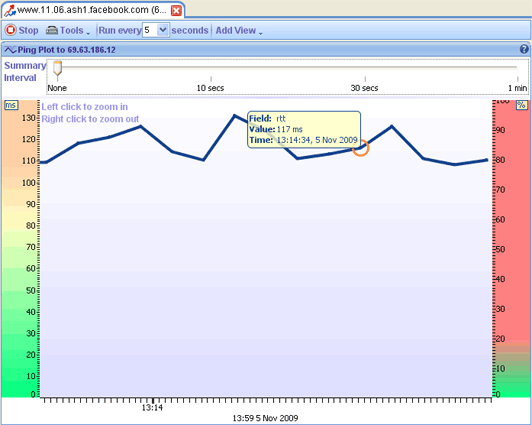
When you choose the plot response times option a graph will open and begin plotting response times to the destination chosen. A typical graph is shown below:

The graph plots response time against time. The time intervals can be chosen using the drop down menu at the top of the graph. To zoom in and out of the graph simply use the right and left mouse clicks.

The summary interval allows you to change the interval at which ping plots are shown. A larger interval may be useful when there is lots of data to view.

You can find out more information for any point on the graph by simply clicking your mouse on the graph. As shown by the tootip shown in the image above.

Copyright © 1997-2009 Visualware Inc. · All Rights Reserved